How to Connect MetaTrader 5 to Opetone: A Step-by-Step Setup Guide for 2026
Learn how to create and connect an Opetone account to your MetaTrader 5 in four simple steps to access centralized trade tracking, real-time statistics, and advanced reporting features
What is Opetone and Why Connect MT5?
Opetone is a trading analytics platform for your Meta Trader account. It connects to MetaTrader 5 terminal to provide you with an enhanced dashboard analytics, so you can monitor your trades and performance insights.
Once you are connected to Opetone with your MT5 account, you will be able to:
- Track centralized trades
- Read real-time statistics
- Access advanced reporting features
All which aren't available in the standard MT5 interface!
This guide is for you if you are a:
- Forex and CFD trader using MetaTrader 5
- User who want centralized trade analytics
- Anyone setting up Opetone for the first time
- Traders looking to automate their reporting workflow
Essentials you will need:
- An active Opetone account (create one here)
- MetaTrader 5 installed on your PC
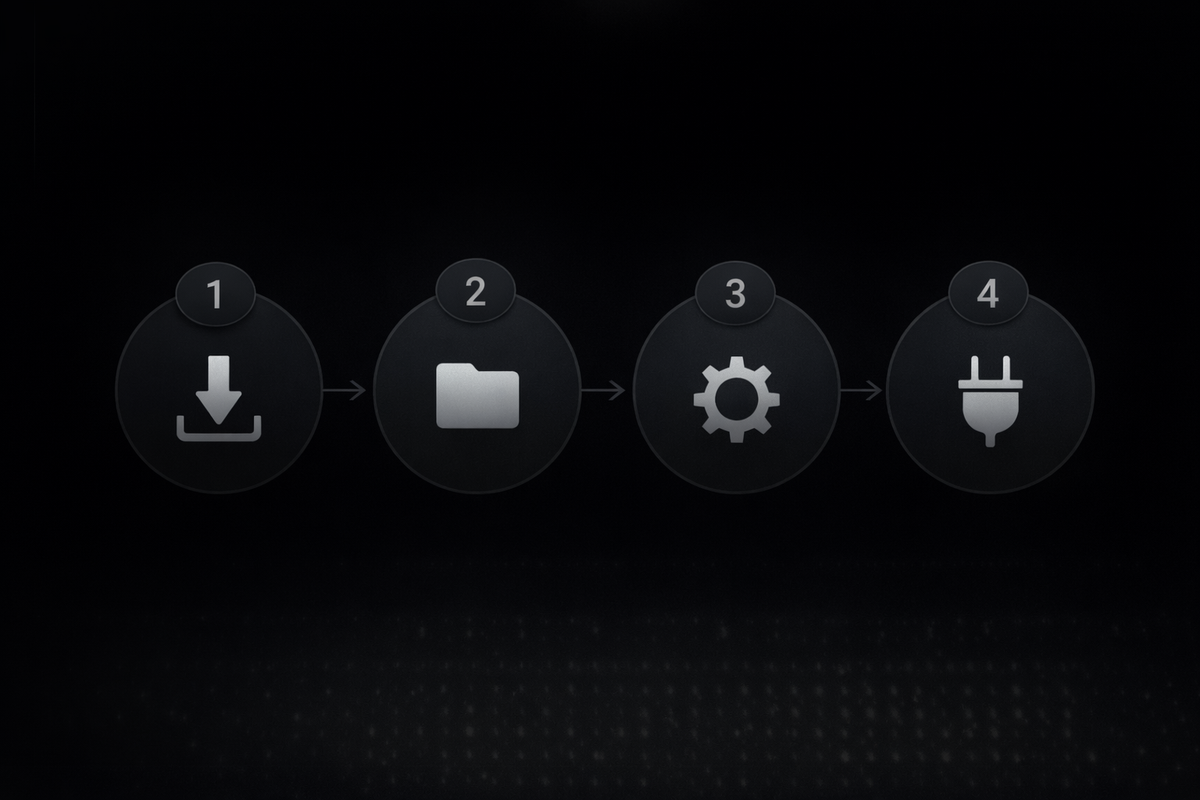
Step 1: Download the Opetone Connector
What is the OpetoneConnector.ex5 file?
The OpetoneConnector is an Expert Advisor (EA) that help establish communication between your trading terminal and the Opetone servers.
How to download:
- Navigate to your Opetone dashboard welcome screen
- Go to Step 1 of the setup wizard and locate the "Download OpetoneConnector.ex5"
- Download the file
Important Note: Third-party sources may contain modified or malicious files, so make sure you download from official Opetone dashboard.
Step 2: Install the EA in MetaTrader 5
Installation process:
- Open MetaTrader 5 on your PC.
- Click File → Open Data Folder (for shortcut press Ctrl+Shift+D)
- Open MQL5 and then navigate to Experts folder
- Copy the downloaded OpetoneConnector.ex5 file and paste into the Experts folder
- Refresh MT5
- Open the Navigator panel in MT5
- Expand to Expert Advisors and confirm the appearance of the .ex5 file
Step 3: Configure MT5 Settings
Configuration steps:
- Open Options
- Click Tools → Options
- Select Expert Advisors tab
- Enable algo trading by checking "Allow Algo Trading"
- Enable web requests by checking "Allow WebRequest for listed URL"
- In the text field below, add:
https://api.opetone.org/api/v1
- In the text field below, add:
- Click OK to save
Step 4: Run the EA and Connect Your Account
Connection steps:
- Attach the EA to a chart:
- Open any chart in MT5 of any symbol
- Double click on OpetoneConnector to apply it onto the chart
- Accept the defaults by clicking OK
- Locate your connection code:
- A 6-digit code will display on the chart, copy it.
- Enter the code in Opetone:
- Return to your Opetone dashboard
- Find the connection code input field (shown in Step 4 of the connection process)
- Paste or type in the 6-digit code
- Click "Connect"
- Confirm successful connection:
- Your Opetone dashboard should update to show "Connected" status
Common Issues and Solutions
| Issue | Solution |
|---|---|
| No code on chart | Verify that your algo trading has been enabled |
| Connection refused | Check your internet connection |
| Dashboard not updating | Check if EA is still running |
That's all!
If you face any issues in connecting your account to Opetone reach out to Team Opetone at [email protected].